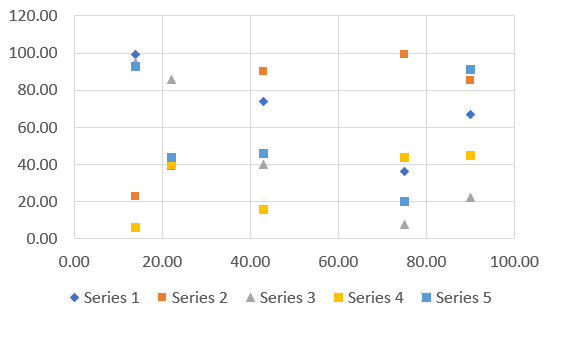
Scatter
Add chart method present in slide component or you can replace the chart using shape component.
Basic Code Sample
Section titled “Basic Code Sample”// Bare minimumpowerPoint.AddSlide(PresentationConstants.SlideLayoutType.BLANK) .AddChart(CreateDataCellPayload(), new G.ScatterChartSetting<G.PresentationSetting>());// Some additional samplespowerPoint.AddSlide(PresentationConstants.SlideLayoutType.BLANK) .AddChart(CreateDataCellPayload(), new G.ScatterChartSetting<G.PresentationSetting>() { scatterChartTypes = G.ScatterChartTypes.BUBBLE });ScatterChartSetting<G.PresentationSetting> Options
Section titled “ScatterChartSetting<G.PresentationSetting> Options”Contains options details extended from ChartSetting that are specific to scatter chart.
| Property | Type | Details |
|---|---|---|
| scatterChartDataLabel | ScatterChartDataLabel | General Data label option applied for all series |
| scatterChartSeriesSettings | List<ScatterChartSeriesSetting?> | Data Series specific options are used from the list. The position on the list is matched with the data series position. you can use null to skip a series |
| scatterChartTypes | ScatterChartTypes | Type of chart |
| chartAxesOptions | ChartAxesOptions | Chart axes options |
ScatterChartDataLabel Options
Section titled “ScatterChartDataLabel Options”Contains options details extended from ChartDataLabel that are specific to scatter chart.
| Property | Type | Details |
|---|---|---|
| dataLabelPosition | DataLabelPositionValues | Data Label placement options. |
ScatterChartSeriesSetting Options
Section titled “ScatterChartSeriesSetting Options”Contains options details extended from ChartSeriesSetting that are specific to scatter chart.
| Property | Type | Details |
|---|---|---|
| ScatterChartDataLabel | ScatterChartDataLabel | Data Label Option specific to one series |