
This content is for v1.x (Discontinued). Switch to the Stable version.
Scatter
Add chart method present in slide component or you can replace the chart using shape component.
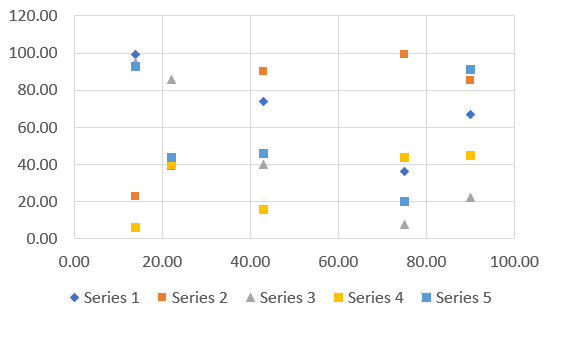
Basic Code Sample
Section titled “Basic Code Sample”// Bare minimumpowerPoint.AddSlide(PresentationConstants.SlideLayoutType.BLANK) .AddChart(CreateDataCellPayload(), new G.ScatterChartSetting<G.PresentationSetting>());// Some additional samplespowerPoint.AddSlide(PresentationConstants.SlideLayoutType.BLANK) .AddChart(CreateDataCellPayload(), new G.ScatterChartSetting<G.PresentationSetting>() { scatterChartTypes = G.ScatterChartTypes.BUBBLE });ScatterChartSetting<G.PresentationSetting> Options
Section titled “ScatterChartSetting<G.PresentationSetting> Options”Contains options details extended from ChartSetting that are specific to scatter chart.
| Property | Type | Details |
|---|---|---|
| scatterChartDataLabel | ScatterChartDataLabel | General Data label option applied for all series |
| scatterChartSeriesSettings | List<ScatterChartSeriesSetting?> | Data Series specific options are used from the list. The position on the list is matched with the data series position. you can use null to skip a series |
| scatterChartTypes | ScatterChartTypes | Type of chart |
| chartAxesOptions | ChartAxesOptions | Chart axes options |
ScatterChartDataLabel Options
Section titled “ScatterChartDataLabel Options”Contains options details extended from ChartDataLabel that are specific to scatter chart.
| Property | Type | Details |
|---|---|---|
| dataLabelPosition | DataLabelPositionValues | Data Label placement options. |
ScatterChartSeriesSetting Options
Section titled “ScatterChartSeriesSetting Options”Contains options details extended from ChartSeriesSetting that are specific to scatter chart.
| Property | Type | Details |
|---|---|---|
| ScatterChartDataLabel | ScatterChartDataLabel | Data Label Option specific to one series |